Creating Invoice in Excel Step by Step (With Formula + Free Template)
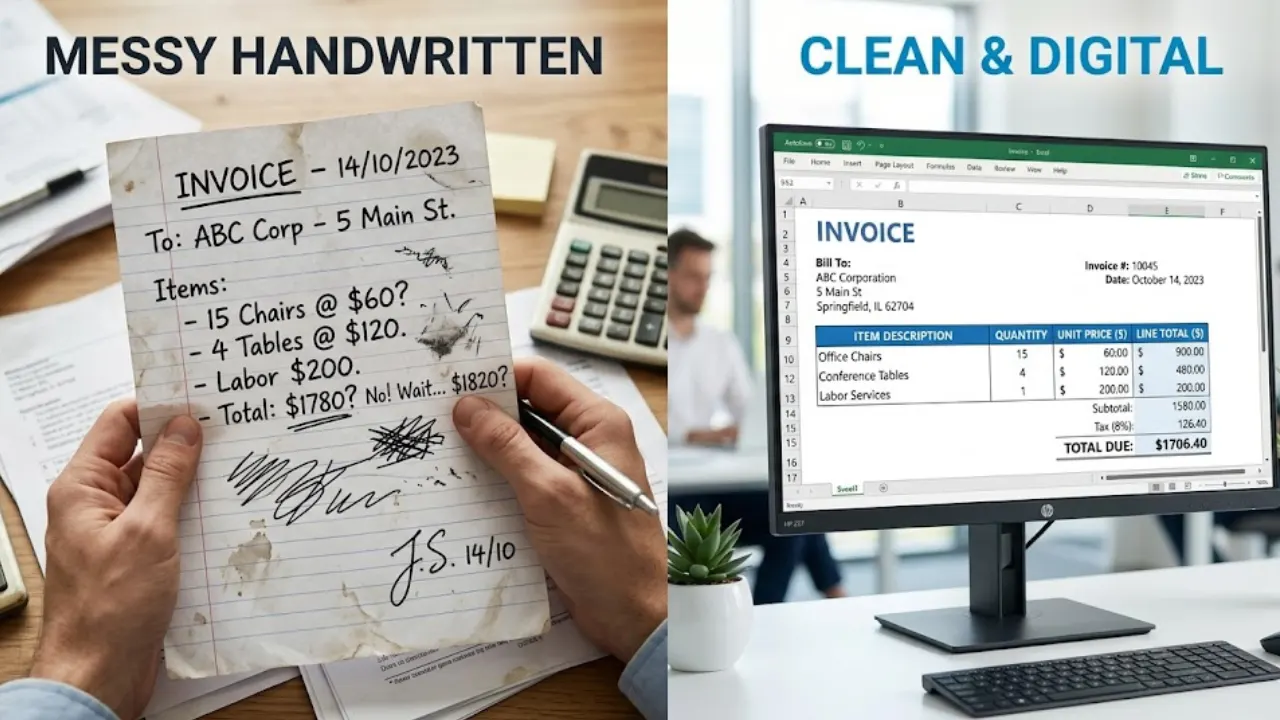
Creating invoice in Excel is one of the easiest and best solutions for your needs, especially when you are just starting out. Excel is an easy tool to use and does not require any special skills. You can easily create an invoice and send it out to your clients in no time.
The first advantage of using Excel for invoice creation is the use of formulas. Formulas are used for calculating the total amount, tax amount, and discount amount. You do not have to calculate the amount manually. This is the first advantage of using Excel for invoice creation. The second advantage of using Excel for invoice creation is the flexibility. You can easily customize your invoice according to your needs.
What Is an Invoice in Excel?
An invoice in Excel is just a bill that you create using a spreadsheet, asking your client to make payments towards your services. When you start creating your invoice in Excel, you use rows and columns to arrange your important details like your business name, client name, services provided, prices, and the final amount.
For a deeper look, read our guide: Free Invoice Template in Excel.
The main idea behind creating an invoice is to show your client the amount of work you have done for them and the amount they need to pay you in return. Creating an invoice in Excel is very easy, as you can arrange all your details in a proper manner.
One of the best advantages of creating an invoice in Excel is that you are free to design your invoice as you want, as there are no limitations on the design of your invoice in Excel.
Want a ready-made file? Download our ready-made Excel invoice template.
Benefits of Creating Invoice in Excel
• You don’t need to spend a single money on software while creating an invoice in Excel
• You can design your invoice as per your requirement
• You can use formulas in Excel while creating an invoice, which helps in calculating the total, tax, etc.
• It helps you save time while creating an invoice
• You can use the same template repeatedly for different clients
• You can keep your data in one place while creating an invoice in Excel
• You can modify your data anytime as per your requirement
• It helps you in exporting your invoice in PDF format
• It is suitable for freelancers, small business owners, and beginners
• It helps you in reducing errors while creating an invoice
A simple Excel invoice can save hours of manual work every month.
Who Should Use Excel for Invoicing?
It is also a good choice for those who want Creating invoice in Excel. This is especially good for those who are freelancers, such as designers, writers, or video editors. This is because Excel is easy to use and does not need any additional tools.
It is also good for those who own small businesses. This is because it helps them keep track of their payments without using expensive tools. It is also good for those who are new to this and want to learn the basics about an invoice.
For a deeper look, read our guide: Simple Invoice Format in Word.
It is also good for those who are in school or have a part-time job and need to create an invoice for a small project. Creating an invoice in Excel is good for those who need a simple and flexible invoicing system.
Key Elements to Include in an Excel Invoice
However, when you start making your invoice in Excel, it is important to include all this information so that your invoice looks clear and professional.
Firstly, it is important to include your business name and contact information at the top of your invoice. You should also include your business logo.
Then you should include your client’s name and contact information so that it is clear who this invoice is for.
You should also include a unique invoice number and date.
After that, you should include a table that contains your services or products.
You should include columns such as item description, quantity, and price.
This will be easy to understand.
Download your free invoice template in Excel
Download your free invoice template in Excel now and start creating professional invoices in just a few clicks!
You should also include subtotal, tax, and total.
Finally, you should include your payment terms and methods.
These elements will be important when you are creating invoice in Excel and will help you look more professional.
Step-by-Step Guide to Creating Invoice in Excel (With Formula)
Step 1: Open Excel and Set up Your Sheet
To start off, we need to open a new blank workbook in Excel. When making an invoice in Excel, it is important to keep it clean and simple. This means we should set up columns such as item name, quantity, price, etc., so that it is easy to see everything at a glance.
Step 2: Add Business and Client Details
Next, we need to put our business’s name, contact information, etc., at the top of the page. This includes a logo if we want to include it. We also need to put our client’s information at the top of the page as well. This is important so that we can make a clean invoice in Excel.
Step 3: Create the Invoice Table
Now we can create a table that includes columns such as item description, quantity, price, etc. This is an important part of making an invoice in Excel, as it lets us show what we are charging our client for.
Step 4: Use the Formula for Line Total
Now we can use a simple formula such as =Quantity * Price to calculate the total of each item. This is important so that we can make a clean invoice in Excel.
Step 5: Calculate Subtotal and Final Amount
To do this, we can use a formula such as =SUM(total column). This is an important part of making an invoice in Excel, as it allows us to make a clean invoice.
Step 6: Format Your Invoice
Now we can make our invoice look clean and nice to look at. This means we can make our headers bold, as well as add borders to make it look nice.
Step 7: Save and Share
Finally, we can save our invoice as a PDF so that we can share it with our client.
Common Excel Formulas Used in Invoices
When creating invoice in Excel, it is important to use appropriate formulas to make it easier to do so. Below are some basic formulas to help you make an invoice in Excel:
Line Total Formula (Per Item)
This formula is important in helping you calculate the total cost of each item according to its quantity and its respective rates.
Formula: =A2*B2
(For example, if Quantity is in A2 and Rate is in B2.)
Subtotal Formula
This formula is essential in helping you calculate the subtotal of an invoice, which is a collection of item totals.
Formula: =SUM(C2:C10)
(For example, if item totals are entered in column C.)
Tax Calculation Formula
This formula is important in helping you calculate tax, which can be 10%, 5%, etc.
Formula: =C10*10%
(For example, if C10 is my subtotal.)
Final Total Formula
This formula is essential in helping you calculate the final amount due to a client after adding tax to the subtotal.
Formula: =C10+D10
(For example, if C10 is my subtotal and D10 is my tax.)
Discount Formula (Optional)
If you want to give a discount to a client, this formula can help you do so easily.
Formula: =C10-(C10*5%)
(For example, if I want to give a 5% discount.)
Using these formulas to make an invoice in Excel can help you avoid making mistakes while making an invoice.
Professional invoices build trust and help you get paid faster.
Common Mistakes to Avoid When Creating Invoice in Excel
While creating invoices in Excel, small errors may cause bigger problems such as incorrect amounts or delayed payments. A simple error that may occur is incorrect formulas in your invoices. You may end up with incorrect amounts without your knowledge. It is therefore important to be careful with your formulas.
Another problem that may occur is that you may forget some important information, such as the invoice number, date, and client information. This may cause your invoices to look unprofessional and confusing.
Poor formatting is also a problem that may occur while creating invoices in Excel. If your invoices look untidy and messy, it may be hard to read.
Some people may forget to change values and may end up copying values from previous invoices. It is therefore important to be careful while creating invoices in Excel. A simple check will help you avoid errors and keep your invoices professional and smooth.
Excel Invoice vs Invoice Generator: Which Is Better?
In making an invoice using Excel or an invoice generator, both have their own advantages. When using Excel to create an invoice, you have full control over it. You can design it in any way you want. You can also use formulas for the calculations. This is good if you know how to use Excel.
In using an invoice generator for making an invoice, it is much quicker and simpler, even for a beginner. You do not have to arrange any formulas or designs. You simply have to fill in the details, and you already have a professional invoice.
In making an invoice using Excel, you have full flexibility, while in using an invoice generator, you have speed and minimal work.
Conclusion
Creating invoice in Excel is a very simple and effective idea for managing your invoice with zero extra cost involved. With basic setup, you can easily create your invoice in a neat and clean manner.
The best part about creating invoice in Excel is the flexibility involved in the process, as you can design everything according to your needs while keeping your data in one place. With proper avoidance of common mistakes, you can make the process smooth.
Creating invoice in Excel is very useful for those who are freelancers or own small businesses, as you can be very professional in the process while getting paid on time without facing any hassles in the process.
Found this helpful?
Share it with a fellow freelancer or business owner.
Keep reading
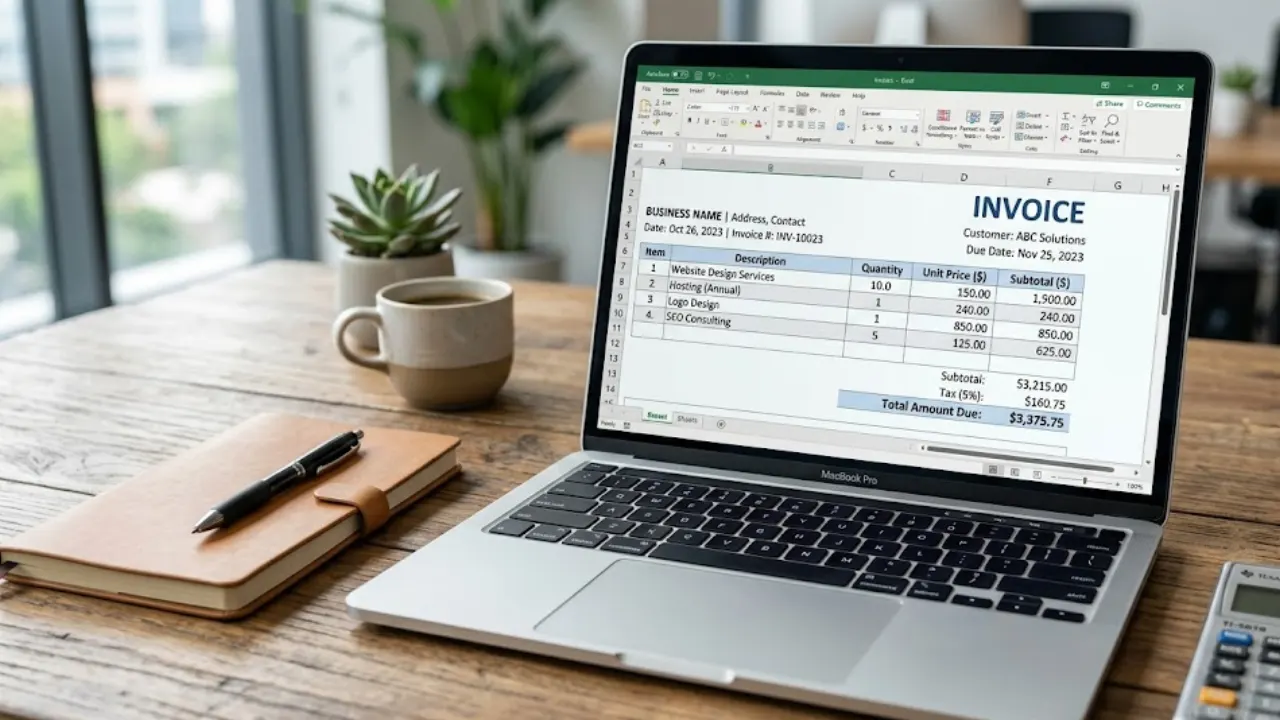
Free Invoice Template in Excel: Download & Create Professional Invoices Easily
A free invoice template in Excel helps you create clean and professional invoices without any design skills. You can easily edit details like client name, services, price, and total amount. It’s simple, fast, and perfect for freelancers and small businesses who want an organized billing process.
How to Create a Professional Invoice Your Clients Will Pay Faster (Step-by-Step Guide)
Creating a professional, well-structured invoice with clear pricing and payment terms helps you build trust, reduce delays, and get paid faster while maintaining a strong business image.
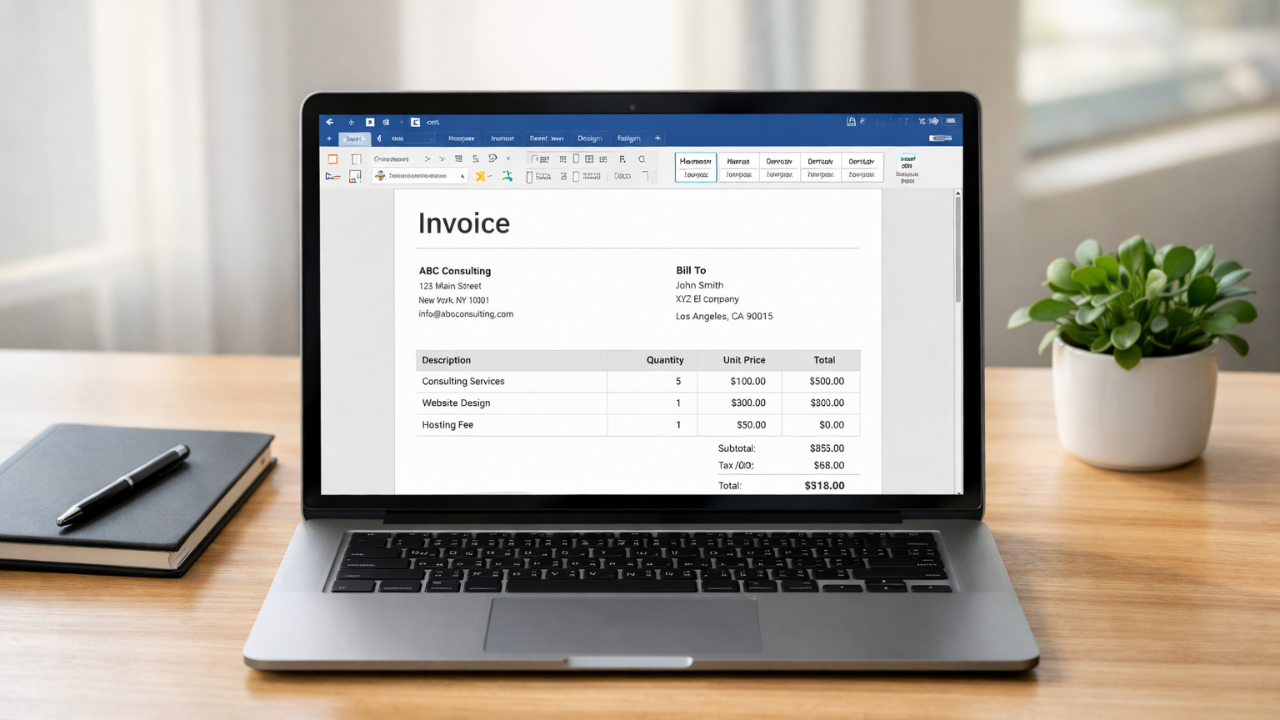
Simple Invoice Format in Word (Free Template for Small Businesses)
Learn how to create a simple invoice format in Word with easy examples, essential invoice elements, and step-by-step guidance.
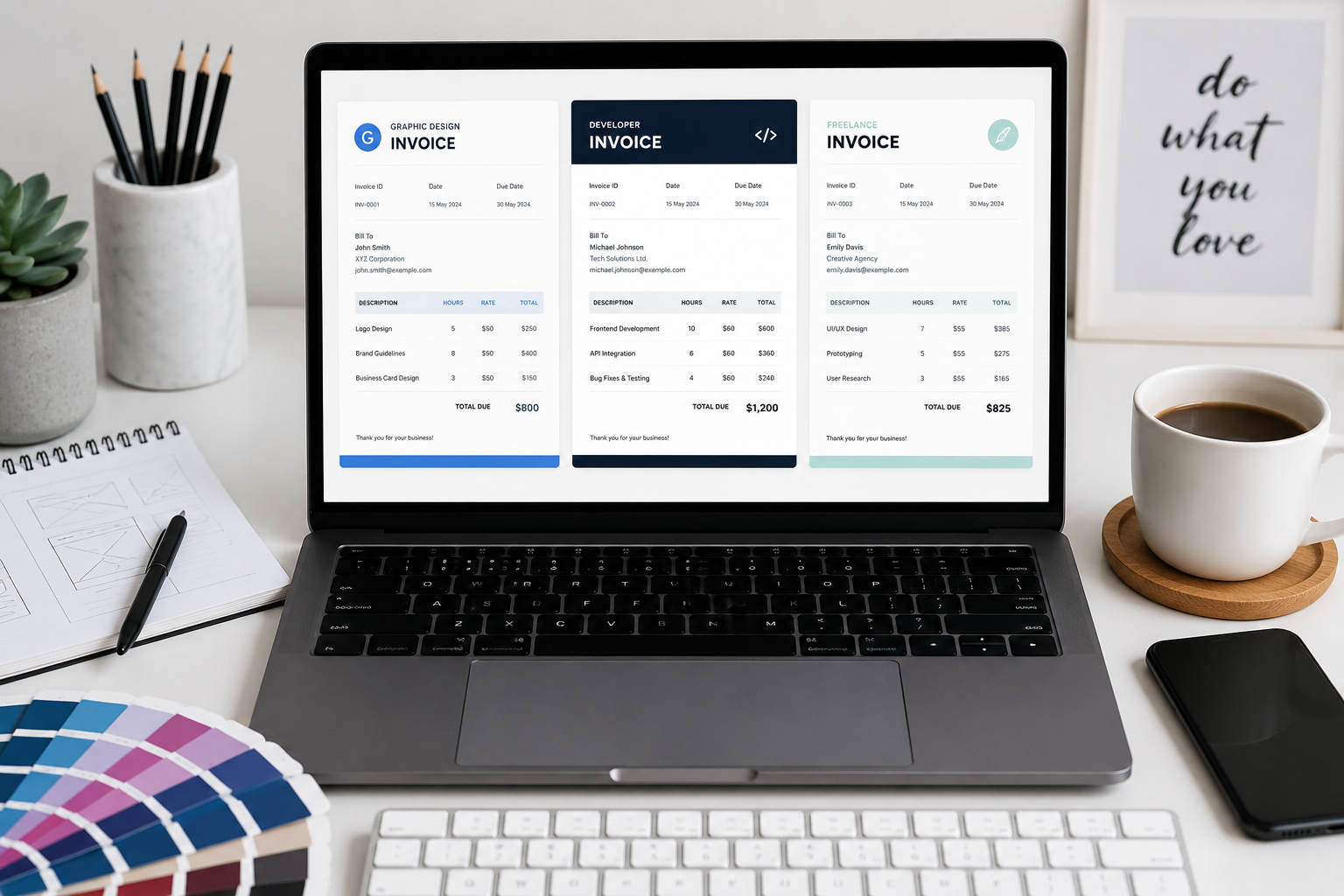
Top 5 Clean Invoice Templates for Graphic Designers & Developers
Your invoice is the final deliverable of your creative process. Discover our six professional templates designed specifically for technical and creative professionals.
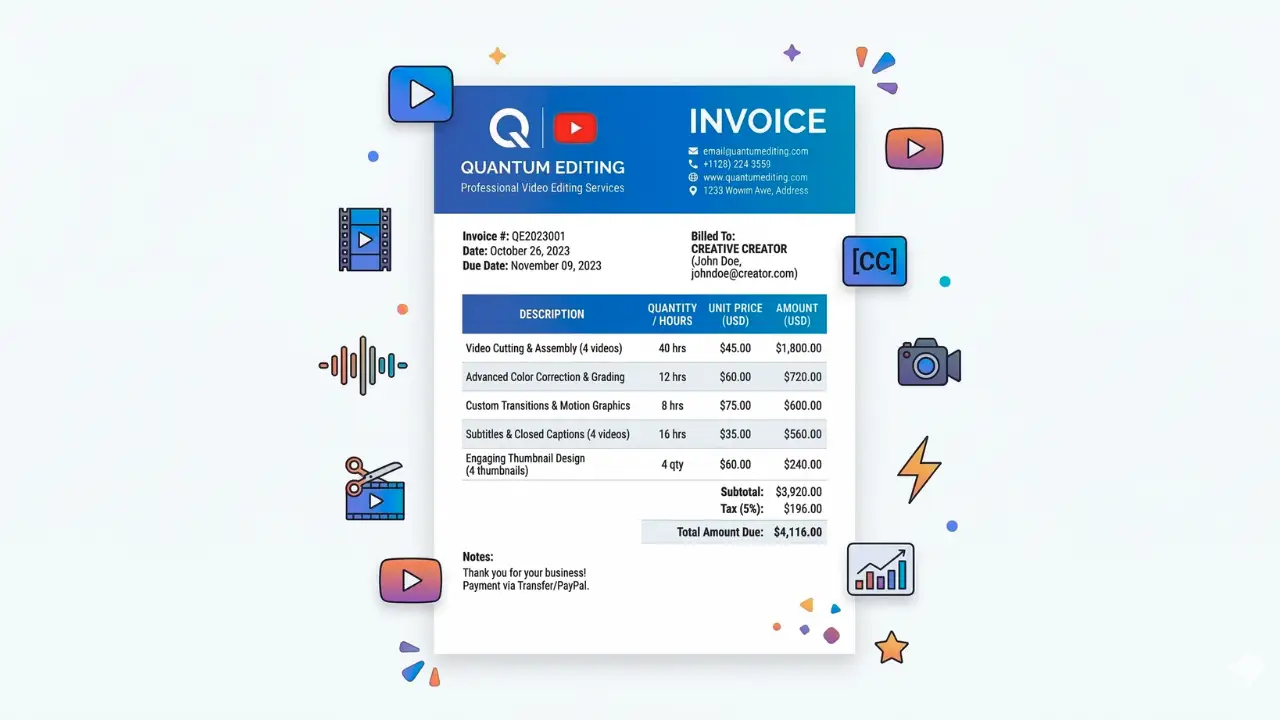
How to Make an Invoice for YouTube Video Editing (Step-by-Step Guide)
If you work as a YouTube video editor, sending a professional invoice is important for getting paid on time. This guide explains how to make an invoice for YouTube video editing services and the key details every invoice should include.

How to Make an Invoice for Instagram Marketing Services (Easy Guide)
Learn how to make an invoice for Instagram marketing services. Discover what to include, see examples, and create professional invoices for social media clients easily.